SAML SSO with Google Workspace
This article describes how to set up SAML Single Sign-on for Semgrep AppSec Platform with Google Workspace, including how to set up the necessary attribute mappings.
Google Workspace configuration
- Set up a custom SAML app in Google Workspace. The default Name ID is the primary email, and this value is optimal for use with Semgrep AppSec Platform.
- When you reach the Add mapping step of the instructions to set up a custom SAML app, add the two attribute statements that Semgrep AppSec Platform requires:
nameandemail.- The attribute mapped to
emailshould be the primary email. - The attribute mapped to
nameshould be some form of the user's name. You can use a default attribute like the user's first name, or create a custom attribute for their full name.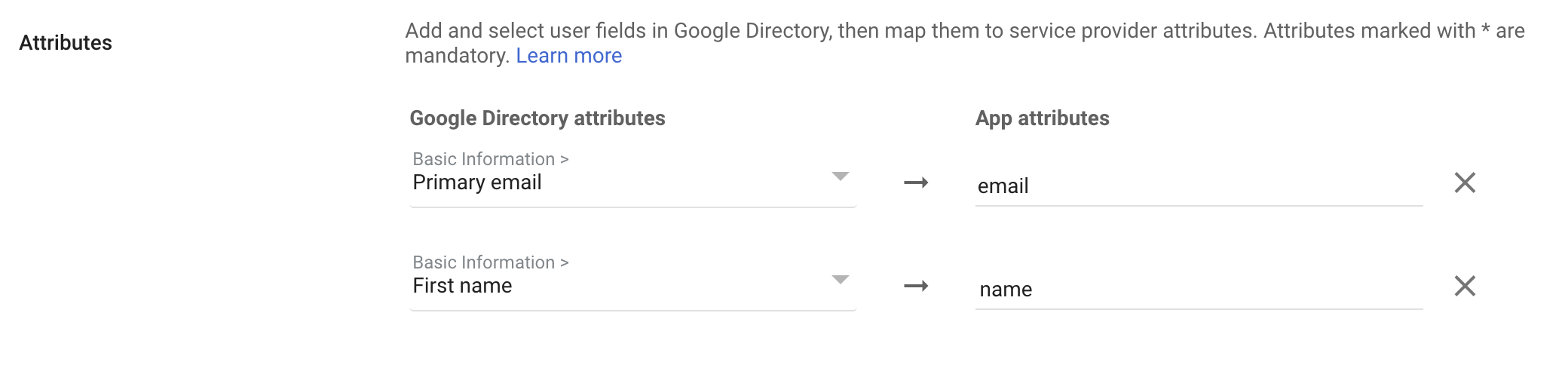
- The attribute mapped to
Semgrep configuration
- Sign in to Semgrep AppSec Platform.
- Go to Settings > Access > Login methods. In the Single sign-on (SSO) section, provide a valid Email domain, then click Initialize.
- The Configure Single Sign-On dialog appears to guide you through the remaining configuration steps. Begin by selecting Custom SAML.
- Follow the instructions provided on the subsequent Configure Single Sign-On dialog pages to complete this process. When you've completed the required steps, verify that the Connection details shown on the Connection activated screen are correct, and use Test sign-in to test the connection.
- To use the new connection, log out of Semgrep, then log back in using SSO.
Not finding what you need in this doc? Ask questions in our Community Slack group, or see Support for other ways to get help.